1. Accounts, sign-in & security
You only need an account to organize or help run a tournament. Players and fans never sign in — they just open the public tournament link.
Create an account
- Go to out-score.com and press Sign Up in the top-right corner (or Create Free Account on the home page).
- Choose how you want to sign up:
- Continue with Google — one click, and your email is already verified.
- Email and password — fill in Full Name, Email, Password (at least 10 characters) and Verify Password, then press Create Account.

Note
Were you given an invitation code by a tournament organizer? Press I have an invite code at the top of the form instead — see Joining with an invitation code below. The invitation attaches you to that tournament with the right role.
Verify your email
If you signed up with an email and password, OutScore asks you to verify the address before you can do anything else. This is what keeps your account safe: a fresh sign-in code is emailed to you each time you log in.

- Press Send verification email.
- Open the email from Out-Score Support and press Verify Email. (Check junk or spam if you don't see it within a minute.)
- Come back to this tab and press I already verified — continue.
Choose your second step
Once your email is verified you'll see the Secure your account screen with a QR code. You have two options and can switch later from My Account → Security.

| Option | How it works | Best for |
|---|---|---|
| Authenticator app (recommended) | Scan the QR code with Microsoft Authenticator, Google Authenticator, Authy or 1Password (or copy the setup key), type the 6-digit code, and press Enable authenticator MFA. From then on you enter a code from your app at each sign-in. | Organizers who sign in often, or who share a rink with spotty email. |
| Email codes | Press Use email codes instead. Each time you sign in, a 6-digit code is emailed to you. It expires after 10 minutes. | Getting started quickly. Nothing to install. |
Google sign-in users skip this step entirely — Google already verified your inbox.
Signing in
Press Login in the header of any page.

- Press Sign in with Google, or enter your Email and Password and press Login.
- Complete your second step:
- Email codes: a code is sent automatically. Type it in Email code and press Verify & Login. Use Resend code if it didn't arrive (there's a short cool-down between sends).
- Authenticator app: type the code from your app in Authenticator code and press Verify & Login.

After signing in you land where you're most likely to want to be:
- Admins and scorekeepers go straight to their tournament's ScoreKeeper hub.
- Team captains and players go to their Team Captain page.
- Everyone else lands in My Account → Events.
Tip
The email-code prompt has a Set up authenticator app instead link. Use it any time you decide you'd rather not wait for emails.
Joining with an invitation code
Organizers invite helpers (co-admins, scorekeepers, team captains) with a 10-letter invitation code. If you received one:
Go to Sign Up, press I have an invite code, type the code and press Submit Code.
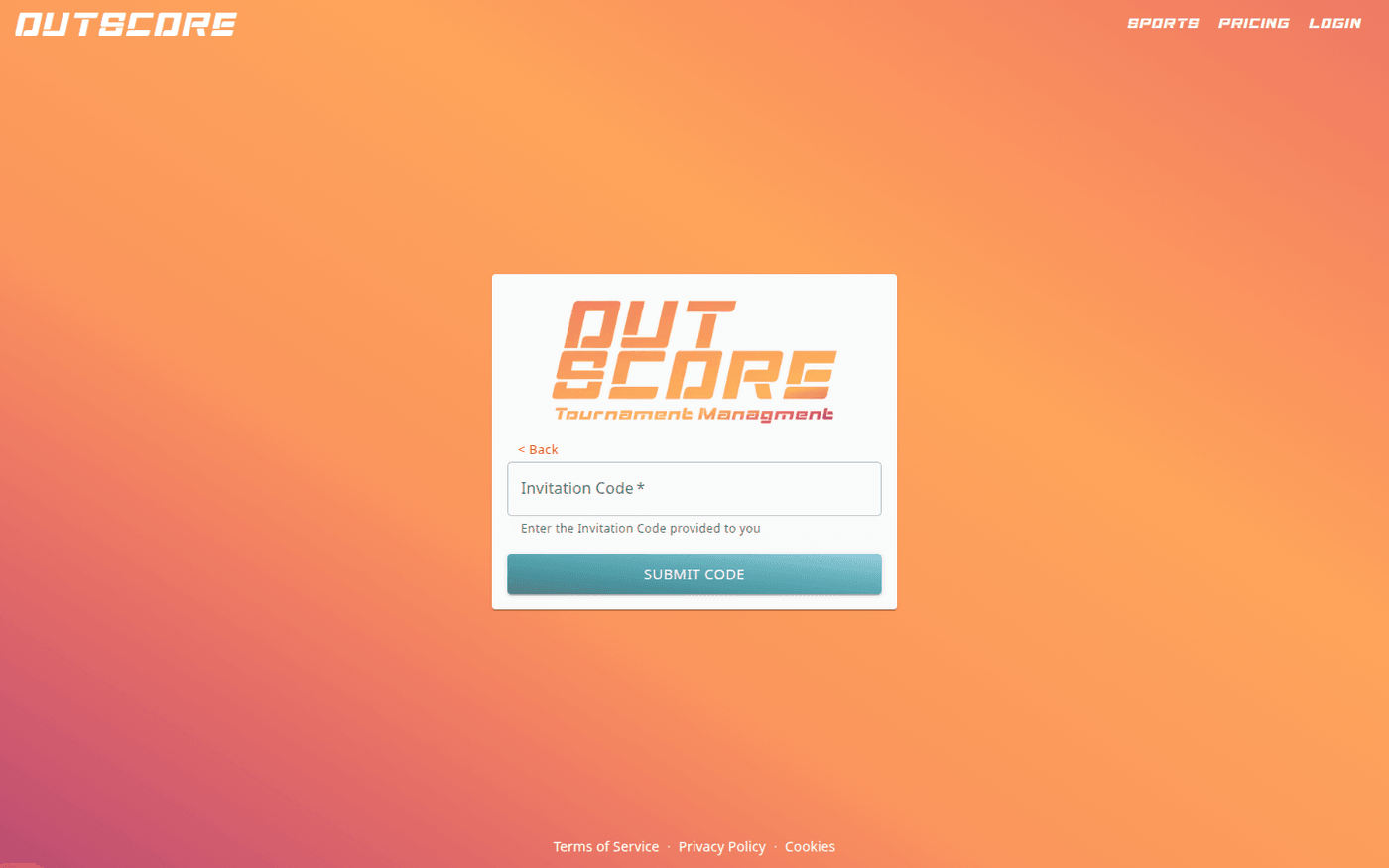
OutScore shows who the account is for — the tournament (for admin and scorekeeper invites) or the player you'll be linked to (for captain invites) — and how long the invitation is still valid.
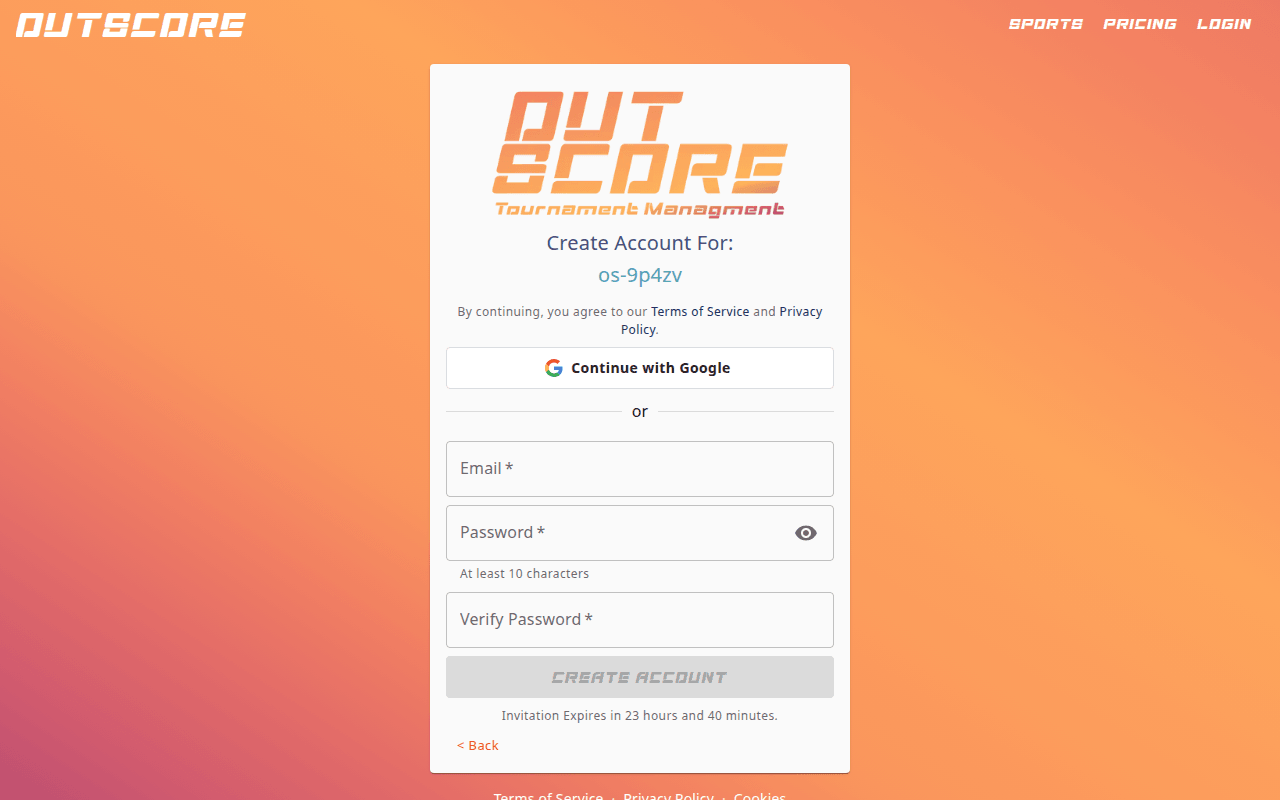
Sign up with Google or email exactly as above. Your role is attached to your account automatically, and the code is marked used so nobody else can redeem it.


Invitation codes expire (24 hours by default) and can only be used once. If yours has expired, ask the organizer to create a new one — see Chapter 4.
My Account
My Account (from the avatar menu in the top-right corner) is your personal home. It has four tabs.
Profile
Your email, display name and avatar. Press the pencil to change your name, or tap the avatar to upload a photo.

Events
Every tournament you own and every tournament you're playing in. This is where you create tournaments (+ or New), and where you Upgrade, Archive, Reactivate, Finish setup or Duplicate & archive them. Chapter 2 covers creating; Chapter 9 covers archiving.

Security
- Email — verification status, with a Verify button if needed.
- Sign-in — Set up authenticator (or Add authenticator if you already have one). If you use an authenticator and want to go back to email codes, press Use email codes; you'll confirm with your password and a fresh authenticator code.
- Password — Send reset email, or type a New password and press Update password.

Billing
Your free Rookie slot and any paid credits, with Add credit to buy more and Manage billing to open the Stripe customer portal (invoices, payment method, cancellations). See Chapter 9.

Forgot your password?
On the Login page press Forgot Password?, enter your email and press Send Reset Link. The link in the email opens a page where you choose a new password (at least 10 characters).
